

Odin Settings Guide: 8 Chart and Order Features
Where Odin keeps hotkeys, quick sizes, the position label, order confirmation and favorites, plus what the top bar, Big Trades and CVD, and shared layouts do.
Odin keeps hotkeys and order confirmation under Settings, and the position label under Chart Settings. This guide covers eight features: trading hotkeys, quick sizes, the position label, order confirmation, the favorites toolbar, the top bar, the Big Trades indicator and saved layouts. Odin is the trading platform from Phoenix Trader Funding, and each feature is written the way Odin's releases state it.
- Where Odin keeps its settings
- Turn on trading hotkeys in Settings > Hotkeys
- Set up to six quick sizes
- Move the position label in Chart Settings > Position
- Switch on order confirmation in Settings > Trading
- Show the favorites toolbar and star your tools
- Find DMLL and DDLL in the top bar on TFeed
- Big Trades and CVD on Odin charts
- Drawing templates and shared layouts
- Set up Odin in five steps
- Frequently asked questions
Where Odin keeps its settings
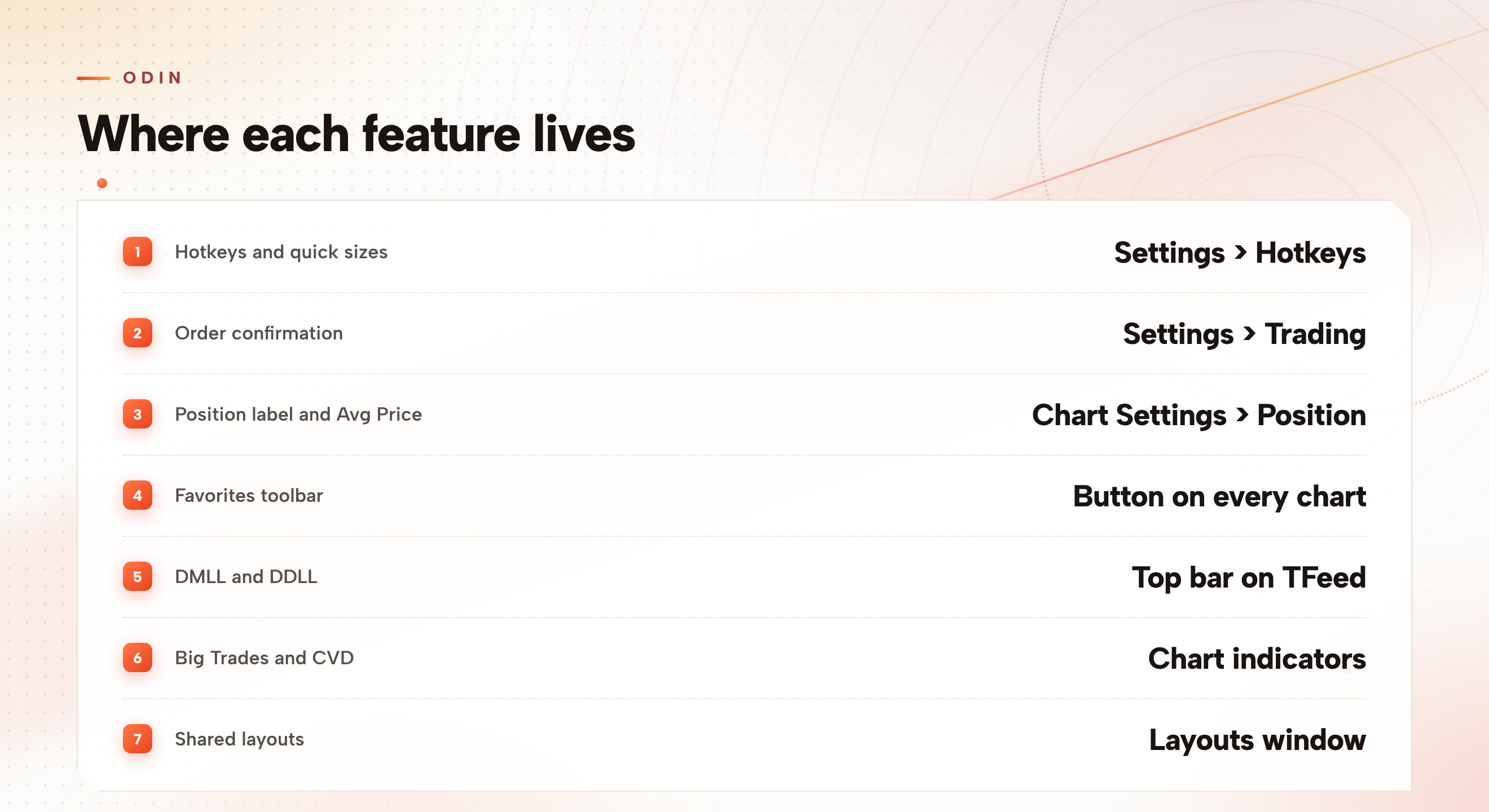
Odin is the trading platform that Phoenix Trader Funding offers to its traders. Hotkeys live in Settings > Hotkeys and order confirmation in Settings > Trading. How a position and its order labels look on a chart lives in Chart Settings > Position.
Odin ships updates often, so the menu names below are the ones its releases stated as of late October 2026.
Turn on trading hotkeys in Settings > Hotkeys
Odin has a trading hotkey set that triggers the platform's real trading buttons, and a switch in Settings > Hotkeys turns it on.
An Order Entry panel is the part of Odin where you set up an order.
- Switch on trading hotkeysThe switch itself warns that order, position and risk hotkeys also need an Order Entry panel open.
- Open an Order Entry panelDo it before you press an order, position or risk hotkey, because those need the panel open.
- Put the DOM on screenThe B (breakeven) hotkey works with the DOM on screen.
A DOM, short for depth of market, is a ladder of prices with the order sizes beside each level.
Set up to six quick sizes
A quick size is a preset order size you reach with one button or one key. In Settings > Hotkeys you can set up to six of them. Each can be a quantity or a dollar value, and each becomes a button on the order panel and on the DOM, with a key of your own choosing.
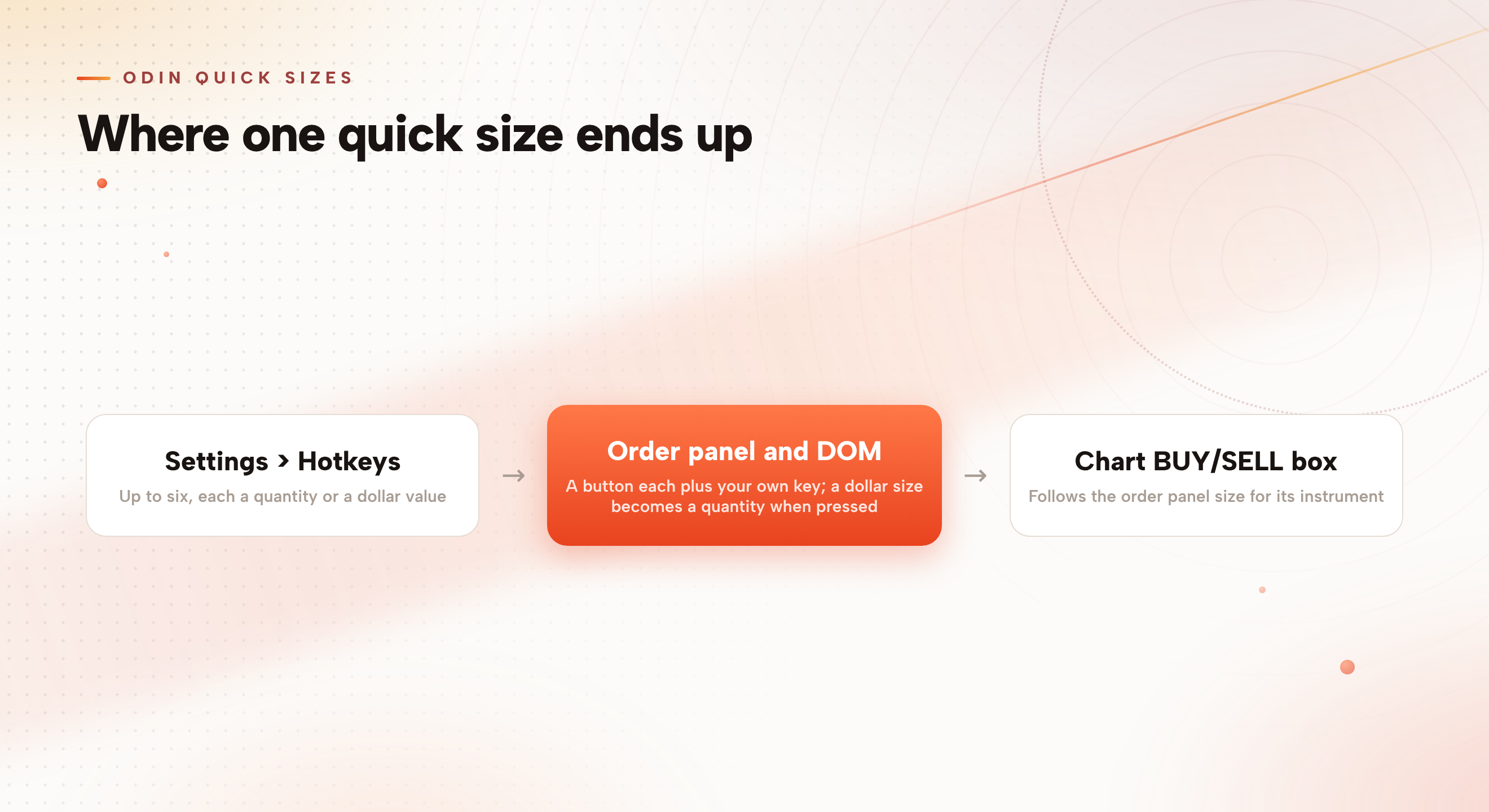
The DOM has its own way in. An arrow on the ladder's quantity box opens the instrument's quick sizes and dollar sizes by position value, and you can edit them there.
On a chart, the BUY/SELL box follows the size set on the order panel for its instrument. The size you choose on the panel is the size the chart box uses.
Move the position label in Chart Settings > Position
Open Chart Settings and go to Position. There you can place the position label right, center or left, and choose which parts of it show.
Placing the position label is also the answer to a question traders ask: how to move the order labels to the left side of the chart. Order labels follow the position's Label Position alignment, right, center or left, so setting the position label to left moves them with it.
- Avg Price, in Chart Settings > Position, dots the average entry where a chart holds two or more positions of one symbol
- A stop docked on its position follows the Label Position setting too, and sits left or centered with the order labels
When an order docks next to a position, you can grab the position anywhere on its line, and the drag preview follows Chart Settings > Position.
Switch on order confirmation in Settings > Trading
Odin has an order confirmation switch in Settings > Trading, and it is off by default. Turn it on if you want confirmation before an order goes out.
Once it is on, confirmation still asks when you trade from a fullscreen chart.
Odin also warns you, before you close it, how many orders and positions are still active. Read that count before you shut the window.
Show the favorites toolbar and star your tools
Every Odin chart has a button to show or hide the favorites toolbar. Show or hide it on one chart and every chart follows. To reorder the chart toolbar and the timeframe buttons within it, hold and drag.
Favorites come from starring. In every drawing tool flyout you can star favorite tools and keep them on a floating favorites bar, saved server-side. In the timeframe dropdown you can star favorite timeframes, and the starred ones become the quick buttons.
These are the things you can star:
- Drawing tools, from any tool flyout
- Timeframes, from the timeframe dropdown
- Custom bar sizes
- Measurers
Find DMLL and DDLL in the top bar on TFeed
On TFeed and TFeed Perpetuals, Odin's top bar shows DMLL and DDLL under Balance and Day P&L. TFeed is the Phoenix execution feed, and this answer on trading platforms and TFeed covers which platforms connect to it.
This guide does not spell out what the two labels measure. The rules for each account type are published in the Help Center, so read the entry for your own account next to the figures in the bar.
Big Trades and CVD on Odin charts
Odin charts have a Big Trades indicator that shows large aggressive trades on the chart, from the live tape. The tape is the running list of trades as they print, and in Odin it is a module of its own. An aggressive trade is one that hits the bid or lifts the offer instead of waiting in the book.
Odin charts also include CVD, short for cumulative volume delta, which is the running difference between buying volume and selling volume. Anchored to a week or longer, from 1W to 12M, CVD runs over that whole period.
Session volume profile, VWAP and CVD can also anchor to CME sessions: the Globex open or the RTH open. RTH stands for regular trading hours.
Globex open or RTH open? Anchored to the Globex open, CVD counts from the start of the CME trading day, so the overnight session is in the number. Anchored to the RTH open, it starts at the regular session open and leaves the overnight out.
Drawing templates and shared layouts
Each chart keeps its own saved templates, and one chart's templates never erase another's.
Here is what else Odin remembers and shares:
- Each drawing tool keeps the last style you used with it
- Set as Default and Templates for drawings keep every setting, for every drawing tool
- The Layouts window shares layouts as plain-text codes
- Sync symbol, in the Chart Layout menu, is off by default
The Sync symbol box moves every chart of a multi-chart grid to the symbol you pick, and each chart keeps its own timeframe. Switch it on when you want a whole grid to follow one symbol.
Set up Odin in five steps
- HotkeysSwitch on trading hotkeys in Settings > Hotkeys, and keep an Order Entry panel open.
- Quick sizesSet up to six, as a quantity or a dollar value.
- Position labelPick right, center or left in Chart Settings > Position.
- Order confirmationSwitch it on in Settings > Trading if you want it.
- FavoritesStar the tools and timeframes you reach for most.
These are platform settings, not account rules. They change how Odin looks and how fast you place an order, and nothing in them changes your account's limits.
This guide describes platform settings. It is education, not financial or trading advice, and trading futures carries a risk of loss.
Frequently asked questions
Where do I turn on trading hotkeys in Odin?
In Settings > Hotkeys, with the trading hotkeys switch. The order, position and risk hotkeys also need an Order Entry panel open, so open one before you press a key.
How do I move order labels to the left of the chart in Odin?
Go to Chart Settings > Position and place the position label left. Order labels follow the position's alignment, and a stop docked on its position sits left or centered with them.
How many quick sizes can I set in Odin?
Up to six, in Settings > Hotkeys. Each is a quantity or a dollar value, shows as a button on the order panel and the DOM, and takes a key of your own. A dollar size becomes a quantity when it is pressed.
Does Odin have an order confirmation?
Yes. Odin has an order confirmation switch in Settings > Trading, and it is off by default, so turn it on if you want confirmation.
Where does Odin show DMLL and DDLL?
In the top bar, under Balance and Day P&L, on TFeed and on TFeed Perpetuals. Phoenix Trader Funding publishes the rules for each account type in the Help Center.
Does Odin show large trades on a chart?
Yes. Odin charts have a Big Trades indicator that shows large aggressive trades on the chart, from the live tape. Odin charts also include CVD, which can anchor to the Globex open or the RTH open.
Pick the account you want to trade, then set Odin up before your first order.
Compare the evaluationsNew funded-account types are trialled at Phoenix Labs as real, tradable accounts before they join the permanent offer. The ones that work graduate; the ones that do not are retired.